
Embedding on your website, sharing on Facebook
Publishing your menu, the short link, embedding it in your own website (script or iframe), and sharing on Facebook.
Your menu always appears in its most recently saved state on your website and at the shared link: if you change a price and save, you don't have to paste anything again anywhere.
1. Publish your menu
In the editor's top bar, click Embed and share (in the ⋮ menu on a narrow screen).
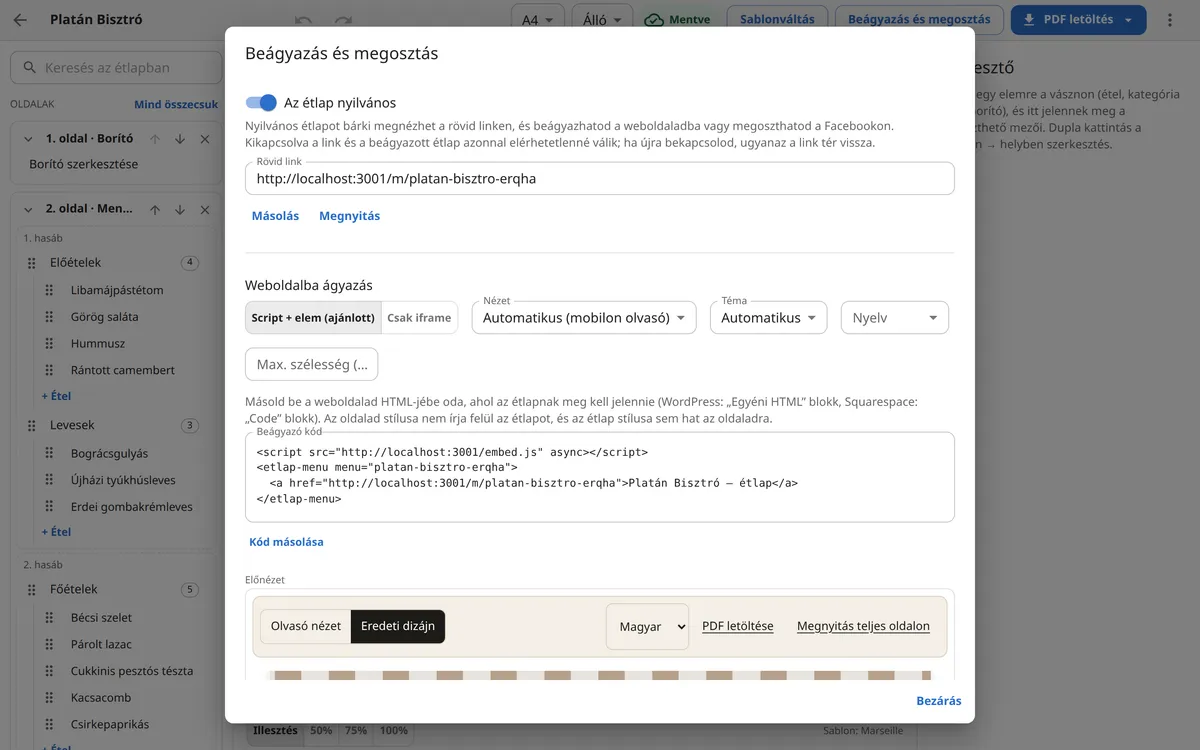
Switch on The menu is public. The Short link appears, with Copy and Open buttons next to it.
Menus are private by default. If you switch public access off, the link and every embed become unavailable immediately; switch it back on and the same link returns.
2. Embed it in your website
In the Embed in website section, keep the Script + element (recommended) mode.
If needed, set the View (Automatic (reading view on mobile), Original design, Reading view), the Theme and, on a multilingual menu, the Language field. The preview at the bottom of the dialog shows the result immediately.
Click Copy code and paste the code into your website's HTML where the menu should appear. The code has two parts: a
<script>line and an<etlap-menu>element.
- WordPress: paste it into a "Custom HTML" block in the block editor. (The free plans of wordpress.com don't allow scripts; there you are left with the iframe or the link.)
- Squarespace: into a "Code" block.
- Wix: choose the iframe only mode and paste it into Wix's "Embed a site" element. Set the frame height by hand, for example 1500 pixels.
- Custom-built site: the code can go anywhere; you can have several menus on a page, and the script only needs to be loaded once.
What does the visitor get?
- On a phone, an easy-to-read, single-column reading view with large type, prices and allergens; with one button they can switch to the original design.
- On a wide screen, the original printed design.
- A PDF download and, on a multilingual menu, a language switcher.
- Your website's styles can't break the look of the menu, and the menu doesn't affect your website either.
3. Share it on Facebook
You can't put a script or an iframe on Facebook, so the short link is the solution there. You find everything you need in the Facebook section of the Embed and share dialog.
Post: write your post and paste in the short link. Facebook automatically shows a large preview image with the first page of the menu and your restaurant name.
Page button: set the button under your Facebook page's cover photo (for example "View menu") to the short link. It always shows the latest menu.
Photo post or uploaded menu: with Page 1 as an image and Download PDF you can download the pages. This is an uploaded copy, so it has to be uploaded again after changes.
If Facebook still shows the old preview image after a change, click the Refresh preview on Facebook link in the dialog.