
Saving, drafts, undo, keyboard shortcuts
How the editor saves by itself, what the save indicator states mean, how to restore unfinished work, and the keyboard shortcuts.
You don't have to look for a save button: the editor saves by itself 2 seconds after every change. The indicator in the top bar always shows where things stand.
The save indicator states
The indicator is in the top bar, next to the size selector. It is also a button: click it to save right away.
Check the indicator in the top bar.

- Saved (or Saved 10:14): every change is on the server.
- Unsaved – save: there is a recent change that will be saved within a few seconds. Click it or press Ctrl+S if you want to save immediately.
- Saving…: a save is in progress.
- Save error – retry: the save failed (for example the server can't be reached). The editor retries by itself, but you can click it too.
- Offline – saves when back online: keep working; when the connection returns, the editor saves by itself.
If you close the tab before saving
- If you try to leave the page with unsaved changes, the browser asks: "You have unsaved changes. Are you sure you want to leave this page?"
- The editor also keeps every change in your browser as a draft. If you open the menu next time in the same browser and it finds unsaved changes, the warning bar at the top of the editor offers: Restore or Discard.
- The draft only exists in the browser where you worked. On another computer or a phone, the version last saved to the server opens.
Undo and redo
To undo one step, click the Undo arrow in the top bar, or press Ctrl+Z.
Bring back an undone step with the Redo arrow or Ctrl+Y (Ctrl+Shift+Z).
The editor remembers the last 50 steps, including a template switch, loading the sample and deleting a page.
- While typing in a text field, Ctrl+Z is the field's own undo; for menu-level undo, click outside the field.
Keyboard shortcuts
You can open the full list with the ? key (outside a text field) or the Keyboard shortcuts item of the ⋮ menu.
Press the ? key.
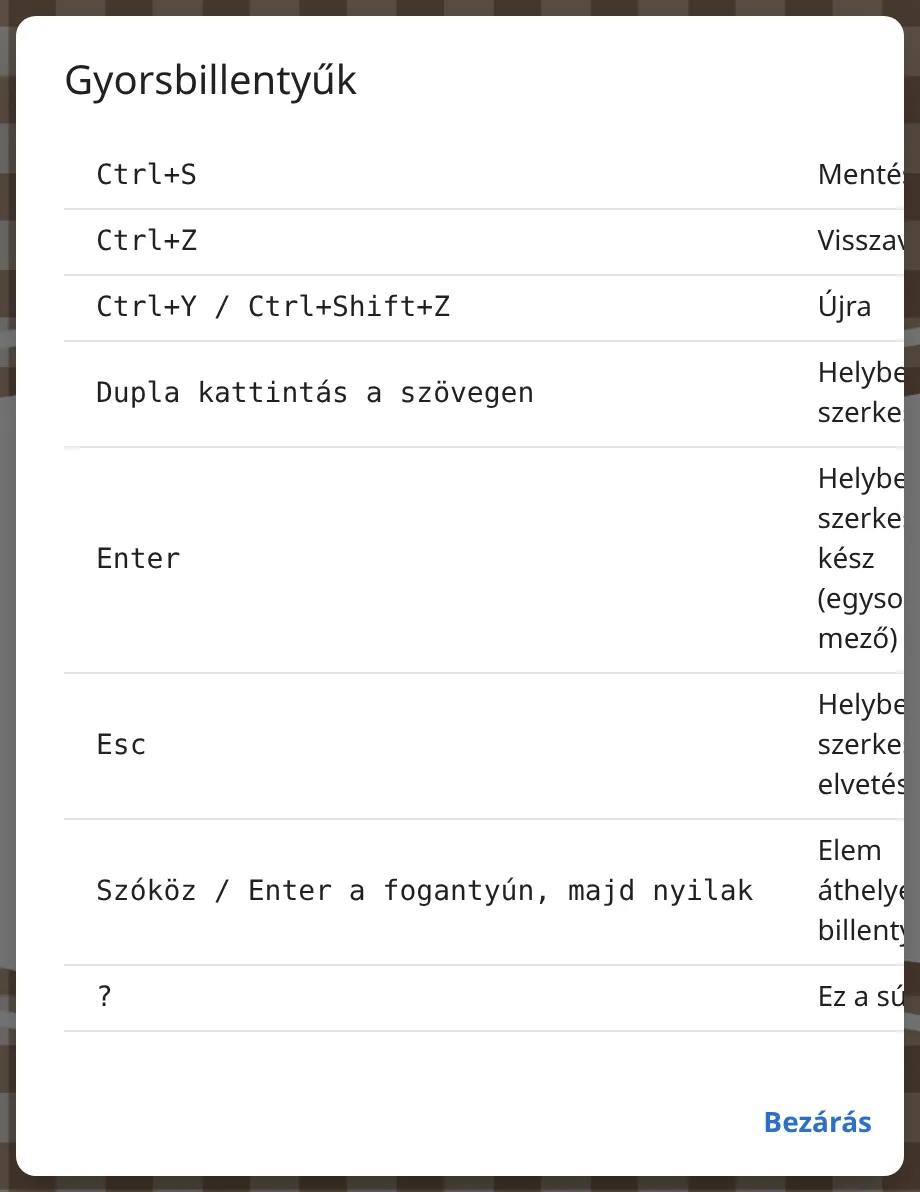
- Ctrl+S: save now (works in text fields too).
- Ctrl+Z: undo.
- Ctrl+Y or Ctrl+Shift+Z: redo.
- Double-click on text: edit in place on the page.
- Enter: finish editing in place (in a single-line field). In a multi-line field, click elsewhere.
- Esc: discard in-place editing.
- Space or Enter on the handle, then the arrow keys: move an element with the keyboard.
- ?: the list of shortcuts.
- On a Mac you can use the Cmd key instead of Ctrl.