
Choosing a template and switching with your content
How to find the design that suits you, and how to swap it later without losing a single dish.
A template only determines the look: fonts, colors, ornaments, layout. Dishes, prices, translations and photos belong to the menu, so they stay when you switch templates.
A template for a new menu
On the My menus page, scroll to New menu from template.
Narrow down the list with the Filter by name or style field. You can search by style too, for example: rustic, modern, dark, Italian.
Click a card: the menu is created and opens in the editor.
Switching templates on an existing menu
In the editor's top bar, click Switch template. (The same button is also in the Content section of the left-hand panel. On a narrow screen, find it in the ⋮ menu at the top right.)
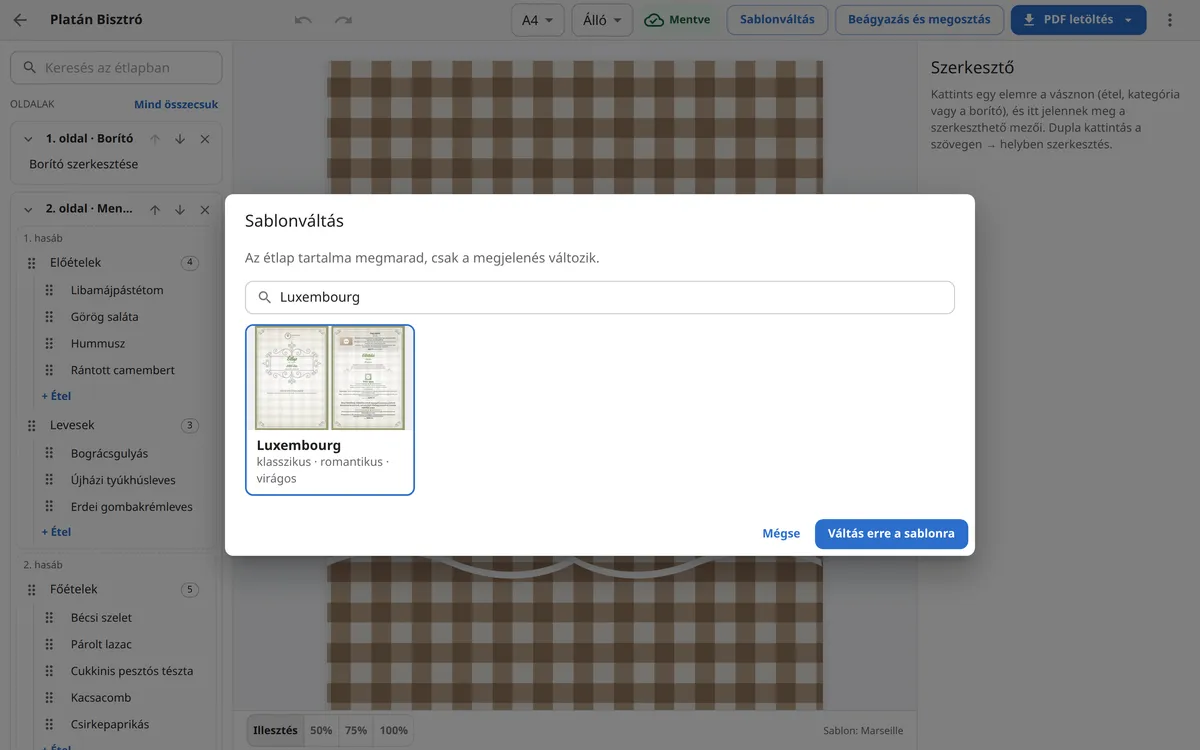
Click the template you want. The current template is marked Current and can't be selected.
Read the warnings at the bottom of the dialog (see below), then click Switch to this template.
Look through the pages. If you don't like the result, Undo (Ctrl+Z) brings back the previous template in one step.
What stays and what changes?
- Stays: every page, category, dish, price, price label, allergen, badge, translation, photo, block, the cover and the contact details.
- Paper size may change: if the chosen template was designed for a different size (for example an A5 flyer), the dialog tells you in advance that the size will switch and the pages will be laid out again.
- Some data may be hidden: if the new template can't show, for example, multiple prices, dish photos, a cover image, a logo or allergen marks, the dialog lists which ones are affected. This data is not deleted, it just isn't visible in this template. Switch back and it reappears.