
Categories, dishes, prices
Adding and reordering categories and dishes, and handling one, two or three prices with price labels (for example 0.3 l / 0.5 l).
The structure of a menu is simple: pages hold categories, and categories hold dishes. You find everything in the list on the left, and the fields of the selected element appear in the right-hand panel.
Adding and editing a category
At the bottom of the page in the left-hand list, click + Category.
Click the new category and, in the right-hand panel, enter the Name and, if needed, the Description (for example "Fresh bread comes with every soup").
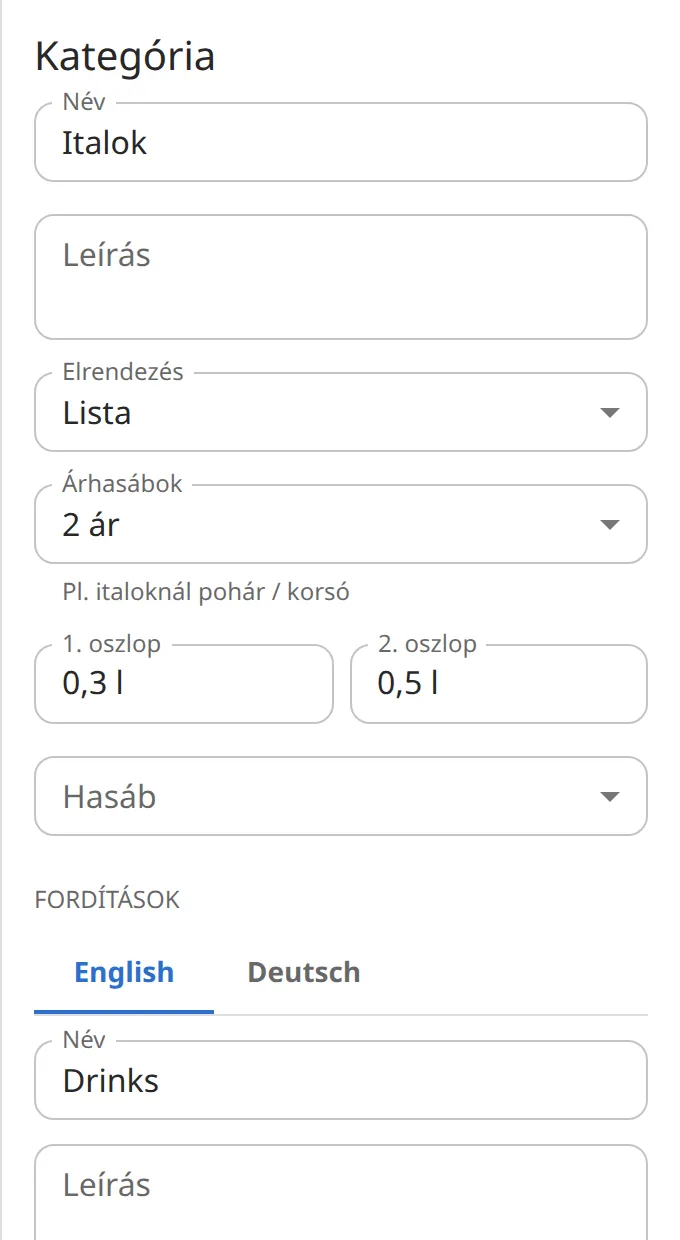
In the Layout field you can choose List, Grid or Featured, if the template supports it.
Adding and editing a dish
Under the category, click + Dish, then the new "New dish" row.
Fill in Name, Description and the price field. The description can be left empty.
If a dish is temporarily unavailable, switch off the Available toggle: you don't have to delete it, and you can bring it back with one click later.
To make a dish stand out, use the Style list or the Featured item toggle (which one appears depends on the template).
Reordering, moving, deleting
- Drag a category or dish to a new place in the list by the handle (⋮⋮) at the start of the row.
- With the keyboard: move to the handle, press Space or Enter, move it with the arrow keys, then press Space or Enter again.
- To delete, use Delete dish or Delete category at the bottom of the right-hand panel. Made a mistake? Ctrl+Z.
- On a long menu, the Search the menu field at the top of the left-hand list helps; it searches translations too.
One, two or three prices
In many places a dish has more than one price: full and half portion, small and large pizza, 0.3 and 0.5 liter drinks. You set this per category.
You choose the default for the whole menu in the Menu settings section of the left-hand panel, in the Show prices field: 1 price, 2 prices (e.g. portion / half portion) or 3 prices.
If only one category needs several prices (for example drinks), select the category and, in the Price columns field, choose 2 prices or 3 prices. Default follows the menu setting.
In the Column 1, Column 2 fields that appear, enter the column labels, for example "0.3 l" and "0.5 l". These labels are shown above the prices on the page.
Select the dish: you see as many price fields as the category has columns, and the fields carry the category's labels.
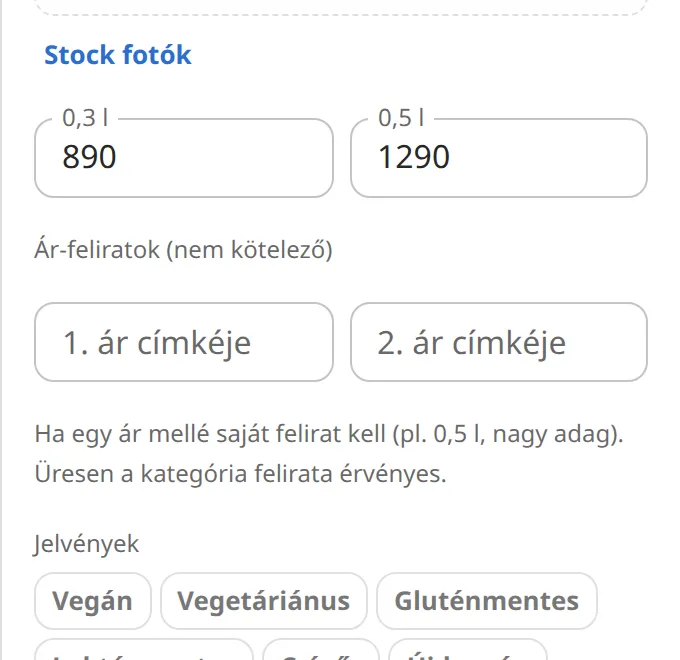
A price label for a single dish
If a dish needs its own label next to the price that differs from the category's label (for example "0.75 l" on a bottle of wine), fill in Label of price 1 (and, if needed, 2 and 3) in the dish's Price labels (optional) section. If left empty, the category's label applies.
Currency
Enter prices as plain numbers (for example 2690). The currency comes from the Currency suffix field in Menu settings, "Ft" by default. If you price in euros, change it to "€".