
Pages, columns, blocks
Adding pages, covers and back covers, one- and two-column layouts, and image, text, divider and featured box blocks.
The left-hand list shows your pages, numbered ("Page 1 · Cover", "Page 2 · Menu page"). When a page's content doesn't fit on one sheet, the system flows it onto the next by itself, so you only need to add a page when you want a separate sheet for content reasons.
Adding a new page
At the bottom of the left-hand list, in the New page section, choose the page type: + Cover, + Menu page, + Back cover or + Custom page.
The new page goes to the end of the list and is selected. Change the order with the ↑ (Move page up) and ↓ (Move page down) buttons in the page header.
To delete, click the ✕ button in the page header. If the page has content, the system asks for confirmation, and the deletion can be undone (Ctrl+Z).
- Menu page: categories and dishes.
- Back cover: the place for contact details (address, phone, opening hours) and the closing line.
- Custom page: a freely composed page made of blocks, for example for the story of your restaurant or an event offer.
One column, two columns, image grid
Click the page title in the left-hand list (for example "Page 2 · Menu page"). The Page settings open in the right-hand panel.
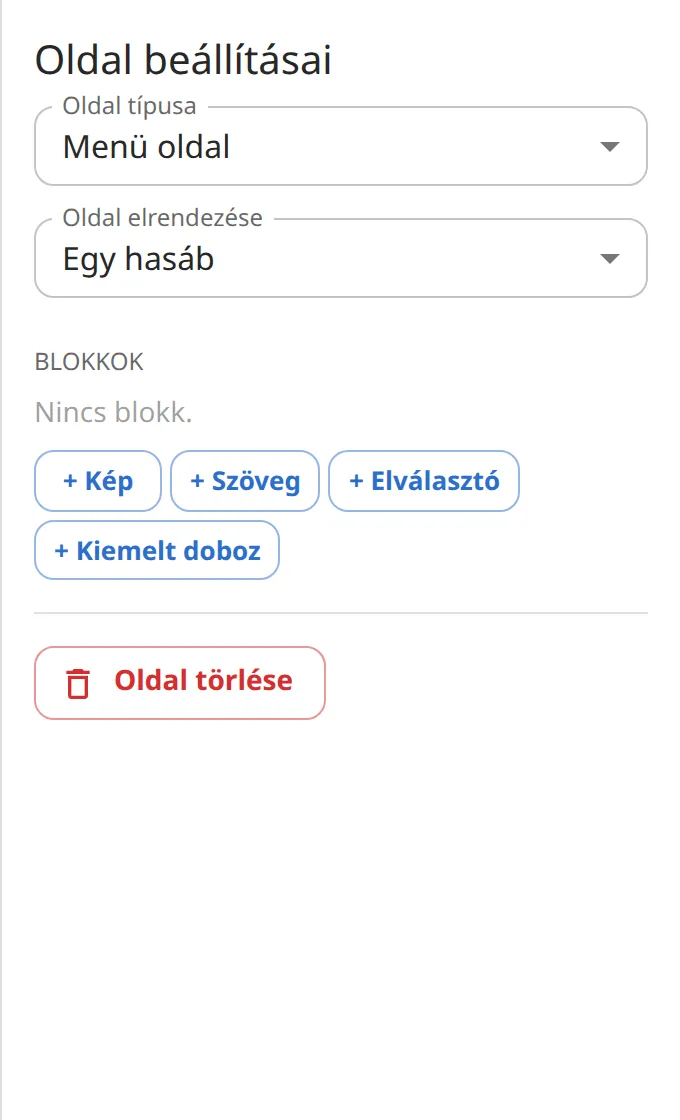
In the Page layout field, choose One column, Two columns or Image grid.
With two columns, the list groups categories by column ("Column 1", "Column 2"). Drag a category by its handle to the other column, or select it and pick its place in the Column field.
Blocks: image, text, divider, featured box
Blocks are elements other than dishes. You can add them to the page in Page settings, and between two categories under Blocks between items in the category's panel.
- + Image: a photo with a caption (its ratio and fit are set just like a dish photo's).
- + Text: a title and text, for example "All our dishes are homemade".
- + Divider: a line, an ornament or empty space between two sections.
- + Featured box: title, text, price, price label and image in a frame, for example for the daily special or a set menu offer.
Editing and moving a block
Blocks appear in the left-hand list with a ▣ mark (for example "▣ Image: …"). Click it, or click the block on the page.
Fill in the fields in the right-hand panel. On a multilingual menu, the block's texts also have a Translations section.
Under Position in the list, move the block with the Move up and Move down buttons; to delete it, use Delete block.